Optimizing OpenClaw for 16GB RAM: The M1/M2/M4 Mac Mini Guide
/** Running a world-class AI intern on a budget? Here is how to configure your 16GB Mac Mini for peak performance with minimal swap usage. */
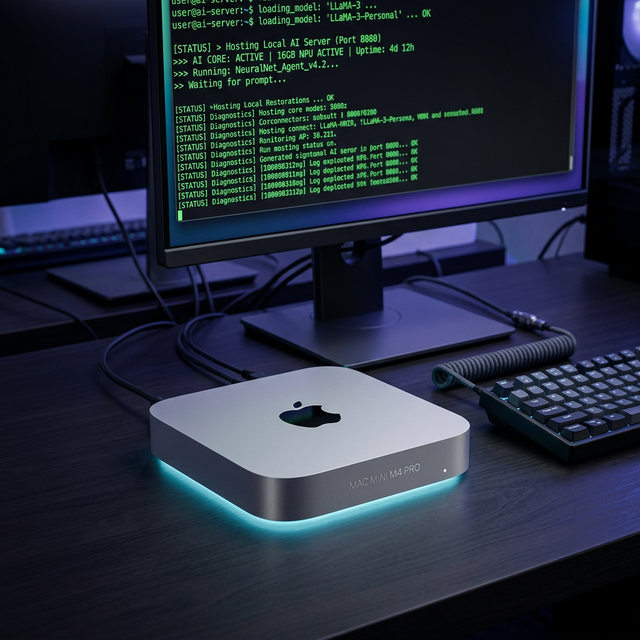
#I. The 16GB Reality: A Balancing Act
The 16GB Mac Mini is the absolute "sweet spot" of the OpenClaw revolution. It's affordable, widely available on the secondary market (M1/M2), and sips power. However, in the world of Artificial Intelligence, 16GB is considered "tight." A Large Language Model (LLM) alone can easily devour 8GB to 40GB of RAM depending on its size.
To run OpenClaw—a recursive, autonomous agent—on a 16GB machine, you cannot simply "hit run" and hope for the best. You must act as a System Architect. You must manage your memory pressure with the precision of a surgeon to ensure your AI intern remains responsive and your SSD remains healthy.
This guide explores the advanced strategies used by the community to extract every drop of performance from 16GB of Unified Memory.
#II. Understanding the macOS Memory Pressure Engine
Before we optimize, we must understand how macOS handles memory. Unlike Windows or Linux, macOS uses a sophisticated Unified Memory Architecture (UMA) where the CPU and GPU share the same sticks of RAM.
1. Wired, Compressed, and Swap
- Wired Memory: Memory that must stay in RAM (Kernel, essential drivers). You cannot touch this.
- Compressed Memory: Memory that macOS has "shrunk" to make room. This is fast to access.
- Swap Used: This is the "Danger Zone." When 16GB is full, macOS begins using your SSD as "virtual RAM." While Apple's SSDs are fast, they are thousands of times slower than actual RAM. Excessive swap will make your AI agent sluggish and will shorten the lifespan of your SSD.
2. The Golden Ratio
For a 16GB machine, your goal is to keep "Memory Pressure" in the Green. If it stays Yellow, your agent is lagging by 20-30%. If it's Red, your agent is effectively "hallucinating" due to timeout errors in the gateway.
#III. Strategy A: The "API Hybrid" (Cloud Brain, Local Body)
This is the most popular strategy for those who need high-speed production results. You use a cloud API (like Anthropic's Claude 3.5 Sonnet) for the heavy reasoning and use your Mac Mini for the "Agentic" execution.
- RAM Footprint: ~300MB - 800MB.
- Performance: Instant. The Mac Mini handles file management, browser automation, and terminal execution, while the "thinking" happens on Anthropic's massive server clusters.
#IV. Strategy B: The "Local Specialist" (Quantization Mastery)
If your goal is Total Privacy, you must run the model locally. On 16GB, you are limited to models between 7B and 14B parameters. To make them fit, we use a process called Quantization.
1. What is Quantization?
Think of it as "JPEG compression for AI." A model in its raw state (FP16) might be 15GB. By quantizing it to 4-bit (Q4_K_M), we can shrink that same model to 4.8GB without significant loss in "intelligence."
2. The 16GB Hierarchy (Recommended GGUF/Ollama models)
| Model Name | Parameter Count | Footprint (Q4) | Reliability |
|---|---|---|---|
| Qwen 2.5 7B | 7.5B | 4.7 GB | 🔥 Highly Recommended |
| Llama 3.1 8B | 8B | 4.9 GB | Excellent Generalist |
| Mistral Nemo | 12B | 7.5 GB | The limit for 16GB |
#V. Advanced System Tuning
To maximize your 16GB, you must disable the "Bloat" that macOS runs by default.
1. The Spotlight Limitation
Spotlight constantly indexes files. If OpenClaw is generating thousands of log files or scraping data, Spotlight will eat 2GB of RAM trying to index it.
# Exclude the OpenClaw data directory from indexing
$ sudo mdutil -i off ~/OpenClaw-data
2. Ollama Memory Management
By default, Ollama keeps models in memory for 5 minutes after use. On a 16GB machine, this is a waste.
# Set Ollama to unload models immediately after a request
# Add this to your ~/.zshrc or environment variables
export OLLAMA_KEEP_ALIVE=0s
3. Browser Isolation
OpenClaw's browser automation (Playwright/Puppeteer) is a "RAM Hog." Every open tab is a potential 200MB hit.
- Tip: Configure OpenClaw to use a "Headless" browser whenever possible.
- Tip: Set an
AUTO_CLOSE_BROWSER_TIMEOUTin your config to 60 seconds.
#VI. Monitoring your Intern: ASITOP
Don't guess how your RAM is doing. Use ASITOP, a terminal-based monitor designed specifically for Apple Silicon.
$ pip install asitop
$ sudo asitop
While the AI is thinking, watch the "DRAM Use" and "SWAP" sections. If SWAP starts climbing past 2GB, it's time to move to a smaller model or switch to an API-based brain.
#VII. Conclusion: The Efficient Sovereign
Running OpenClaw on a 16GB Mac Mini is more than just a hardware choice; it's a masterclass in efficiency. It forces you to understand which tasks require the "Heavy" intelligence of the cloud and which can be handled by the "Private" intelligence of your local silicon.
You don't need a $4,000 Mac Studio to have a world-class AI intern. You just need a $400 Mac Mini and a well-tuned system.
"Complexity is the enemy of performance. On 16GB, simplicity is your greatest superpower."
Ready to tune your system? Check out our Technical Guides for more advanced terminal optimizations.